Setup Guide
A screenshot-by-screenshot walkthrough of setting up VendStack in the dashboard — from creating your account to your first test purchase. Most merchants finish in about 15 minutes.
You'll do six things:
- Create your account
- Confirm your email
- Connect your Merchant API
- Turn on a channel (USSD and/or WhatsApp)
- Subscribe to a plan
- Test in the Sandbox, then go live
Step 1 — Create your account
Go to /register and enter your name, work email, and a password. This is the login for your whole VendStack dashboard.
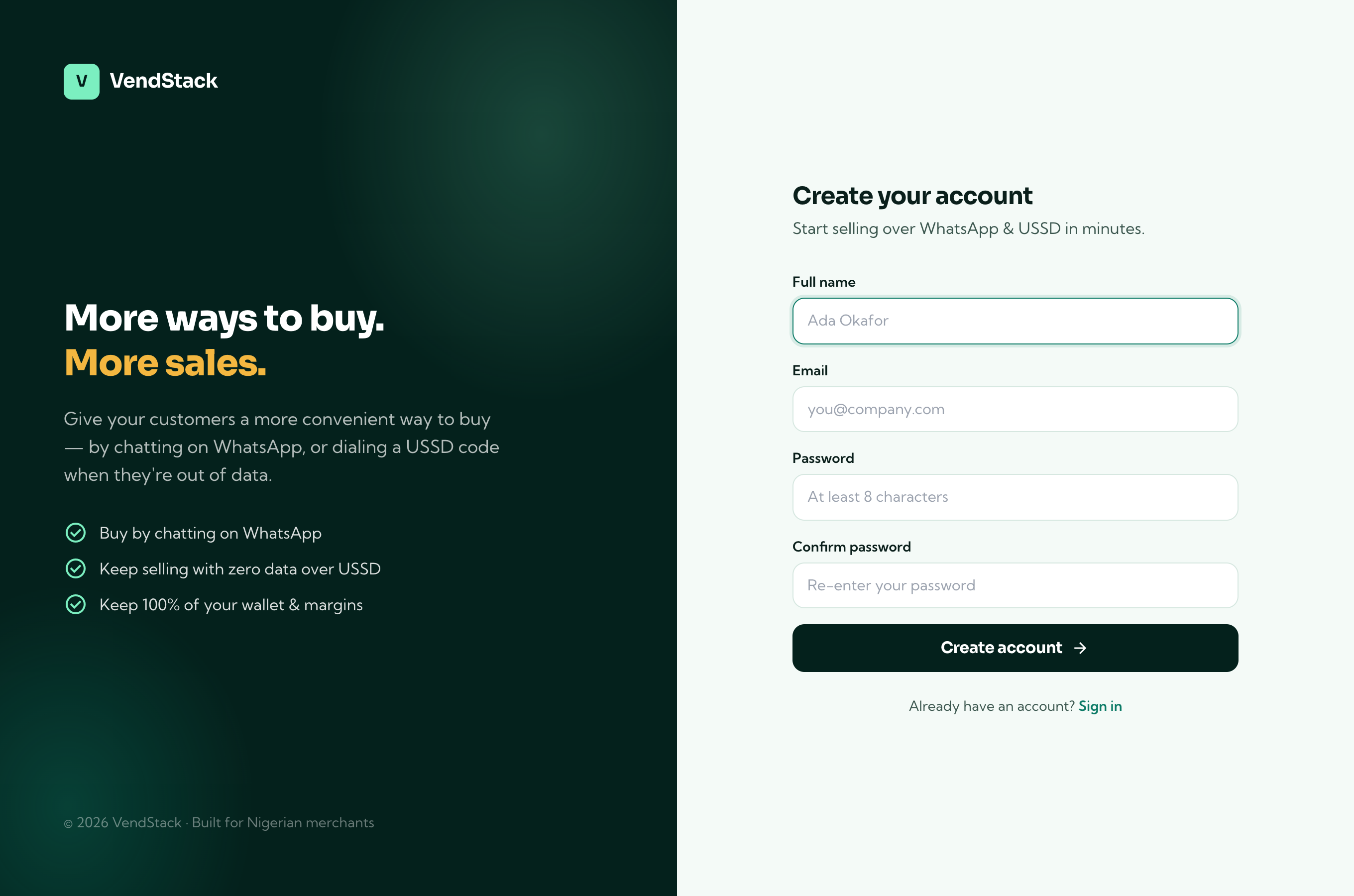
Click Create account. You'll be taken straight to your dashboard.
Step 2 — Confirm your email
Before you can open the dashboard, we send a confirmation link to the email you signed up with. Open your inbox, find the "Confirm your VendStack email" message, and click Confirm email.
- Can't find it? Check spam/promotions, then use Resend on the verification screen.
- The link opens VendStack and unlocks the dashboard — you only do this once.
Seeing a browser "Dangerous site" warning on the link? That's a Safe Browsing reputation flag on a new domain, not a problem with your account — it clears on its own or after a review request. It doesn't affect setup; continue past it or ask support to verify your email manually.
Step 3 — Connect your Merchant API
This is the one backend every channel talks to, so set it up first. From Dashboard → Integrations, open the Merchant API card.
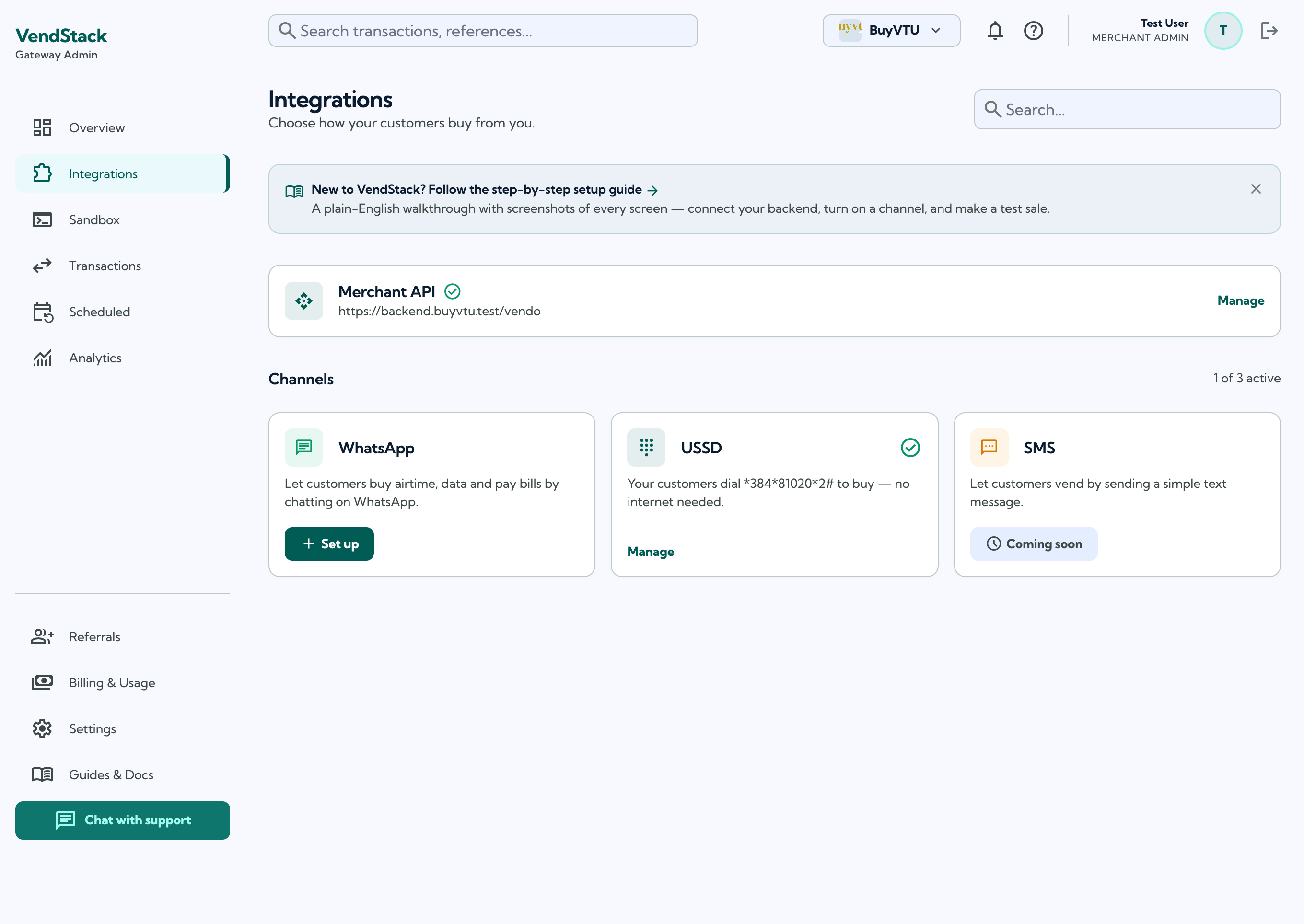
Enter your backend's API base URL and click Save changes. VendStack then shows your signing secret — copy it into your backend so you can verify that every incoming request really came from us (HMAC-SHA256).
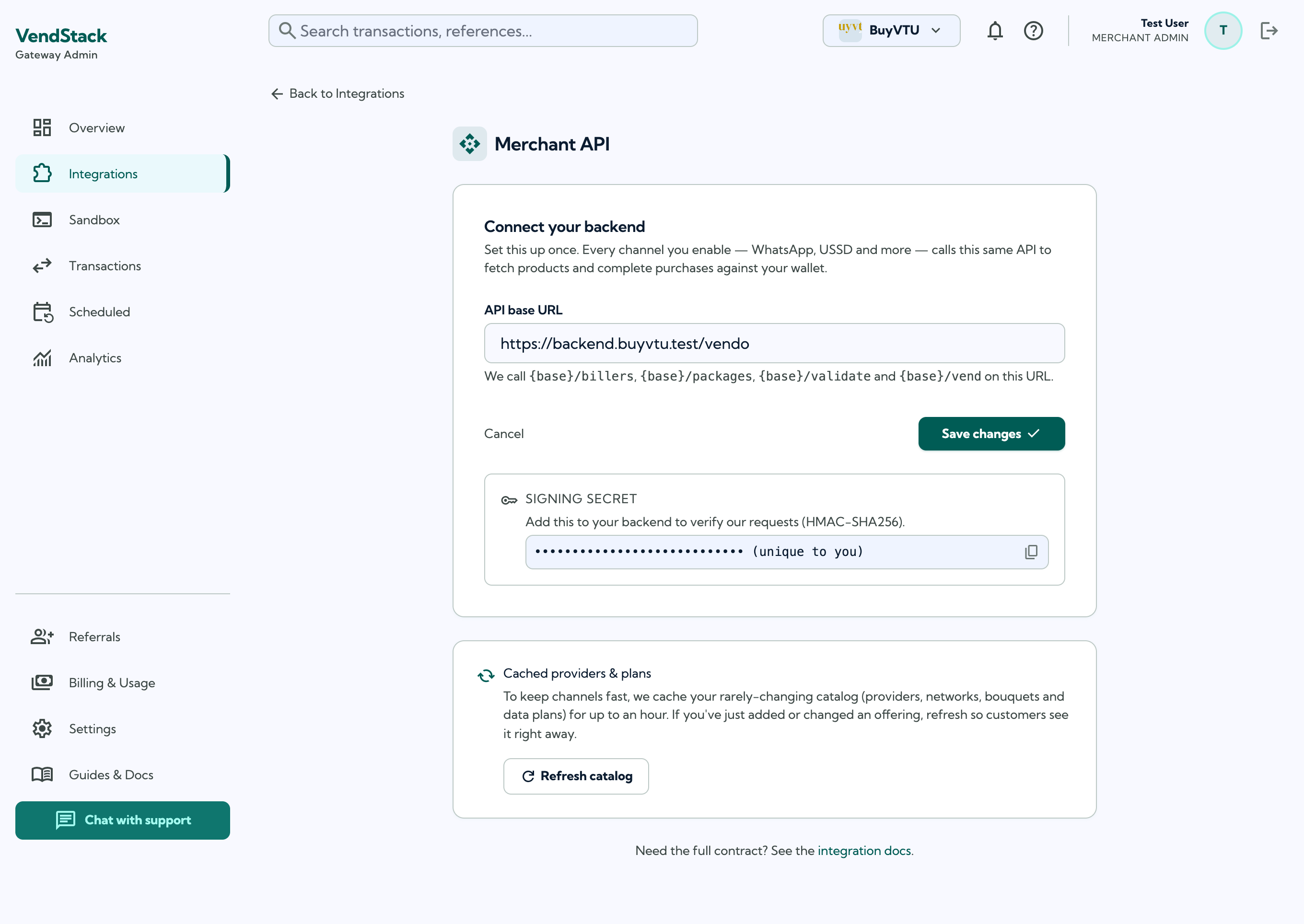
- We call
{base}/billers,{base}/packages,{base}/validateand{base}/vendon this URL. - Your signing secret is unique to you — treat it like a password and never commit it to public code.
- Haven't built these endpoints yet? See the Merchant API reference for exact request/response shapes you can copy.
You own the money. VendStack never holds funds or checks PINs. On every purchase we pass the customer's PIN straight to your
/vendendpoint — your backend validates it and debits the wallet.
Step 4 — Turn on a channel
Back on Integrations, enable the channels you want. They're independent — take USSD only, WhatsApp only, or both.
USSD
Click Set up on the USSD tile, enter your business name, and tick the products you sell (Data, Airtime, Cable, Power, Betting). We assign you a dial code and your customers can start dialing immediately — no app, no internet.
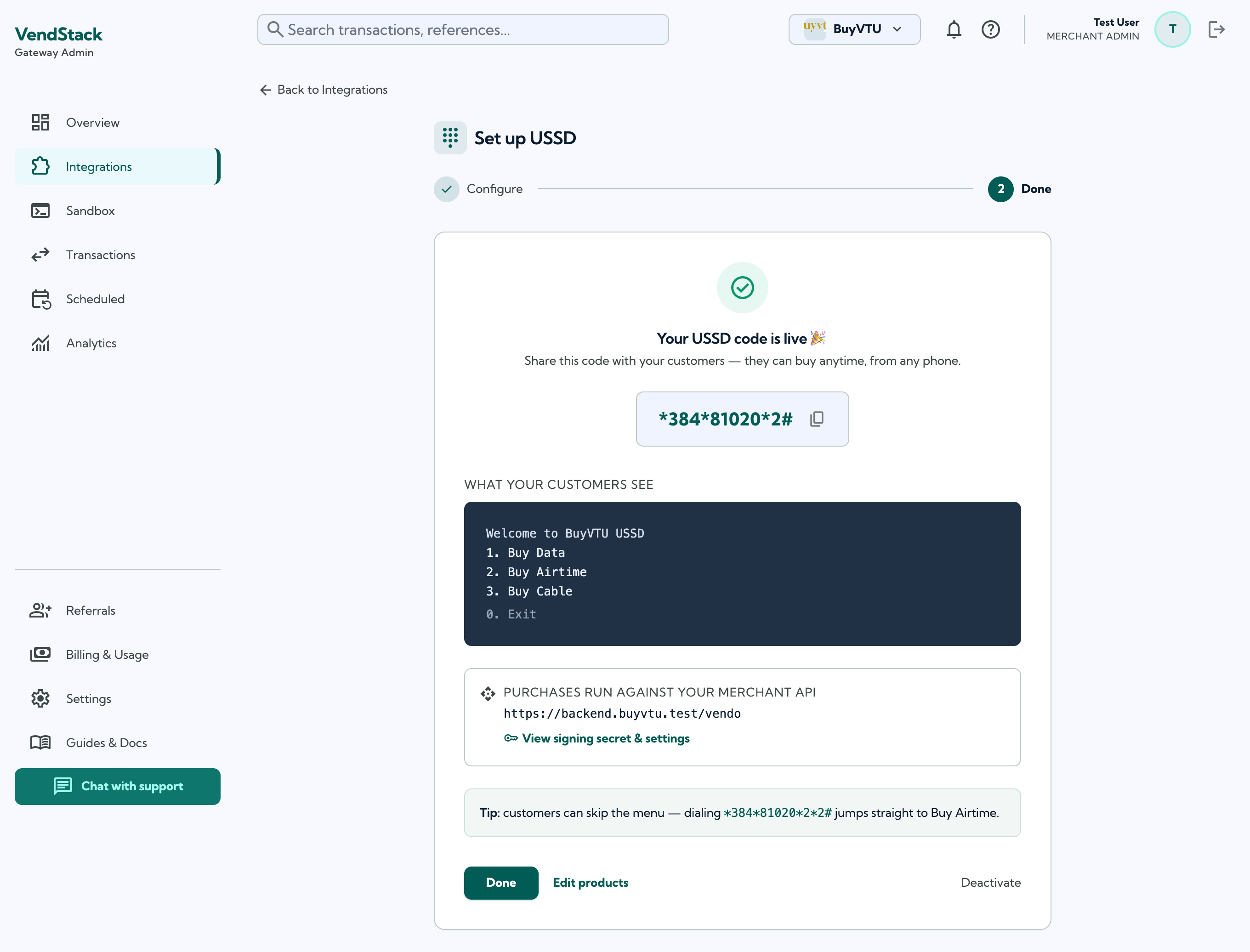
- Your code looks like
*347*321*2#. Customers can also skip the menu — e.g.*347*321*2*2#jumps straight to Buy Airtime. - Use Edit products anytime to change what's on the menu.
Click Set up on the WhatsApp tile. A short guided wizard walks you through pasting a few details from your Meta WhatsApp Business account — we wire up the webhook with Meta for you, so you never touch Meta's webhook screens.
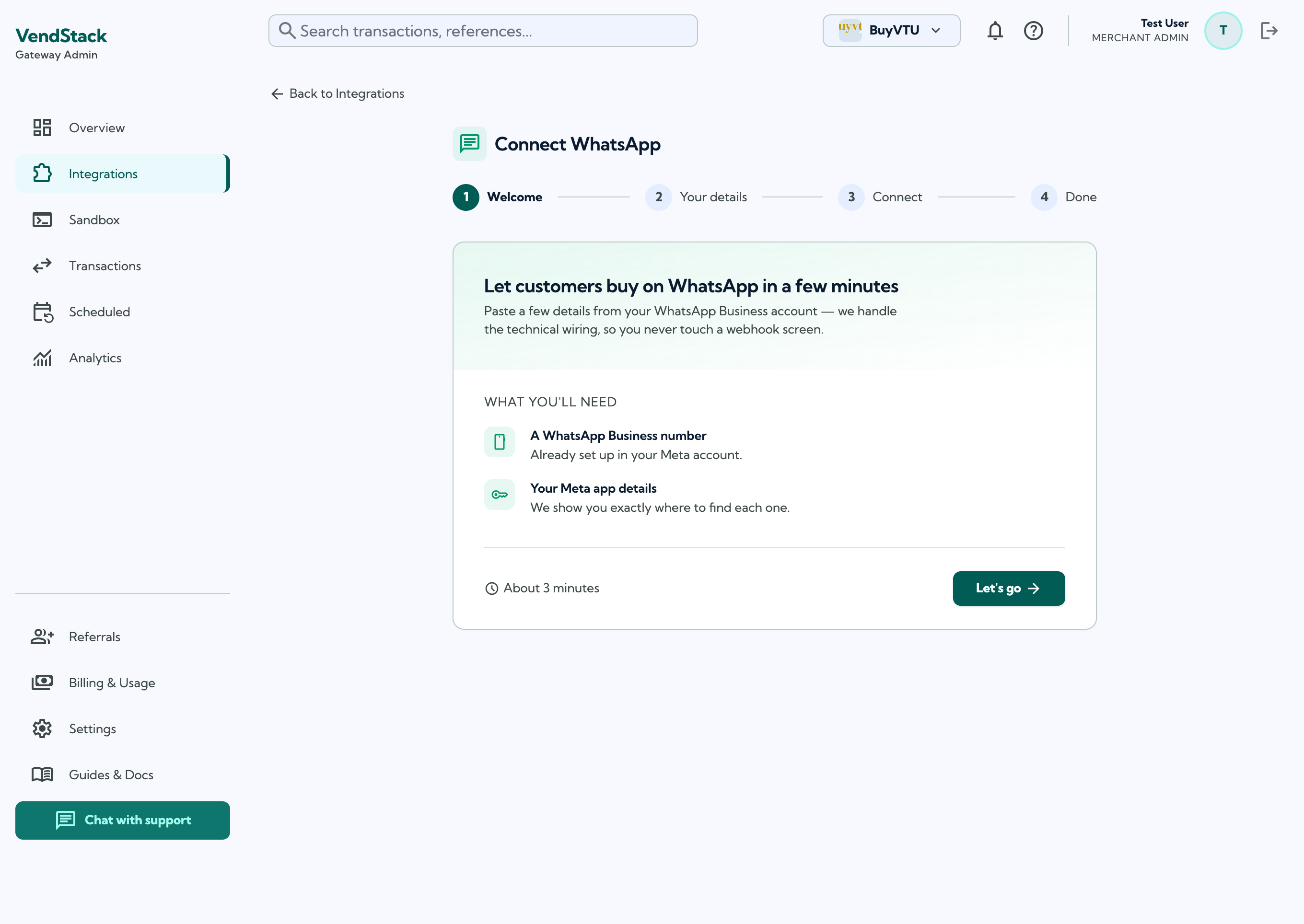
- Each field has a "where do I find this" helper pointing to the exact spot in Meta.
- Choose WhatsApp (menu) for quick-reply menus, or WhatsApp + AI to let customers buy by chatting in plain language.
- Voice notes: on the AI plan, customers can also send a voice note — VendStack transcribes it and treats it like a typed message (e.g. a customer says "send 500 airtime to zero-eight-zero…"). This is on automatically when voice transcription is configured for the platform; if it isn't, the customer is politely asked to type instead.
Step 5 — Subscribe to a plan
A channel only serves customers while its plan is active. Go to Billing & Usage, fund your wallet by transferring to your dedicated account (funds reflect automatically), then subscribe to the channel(s) you turned on.
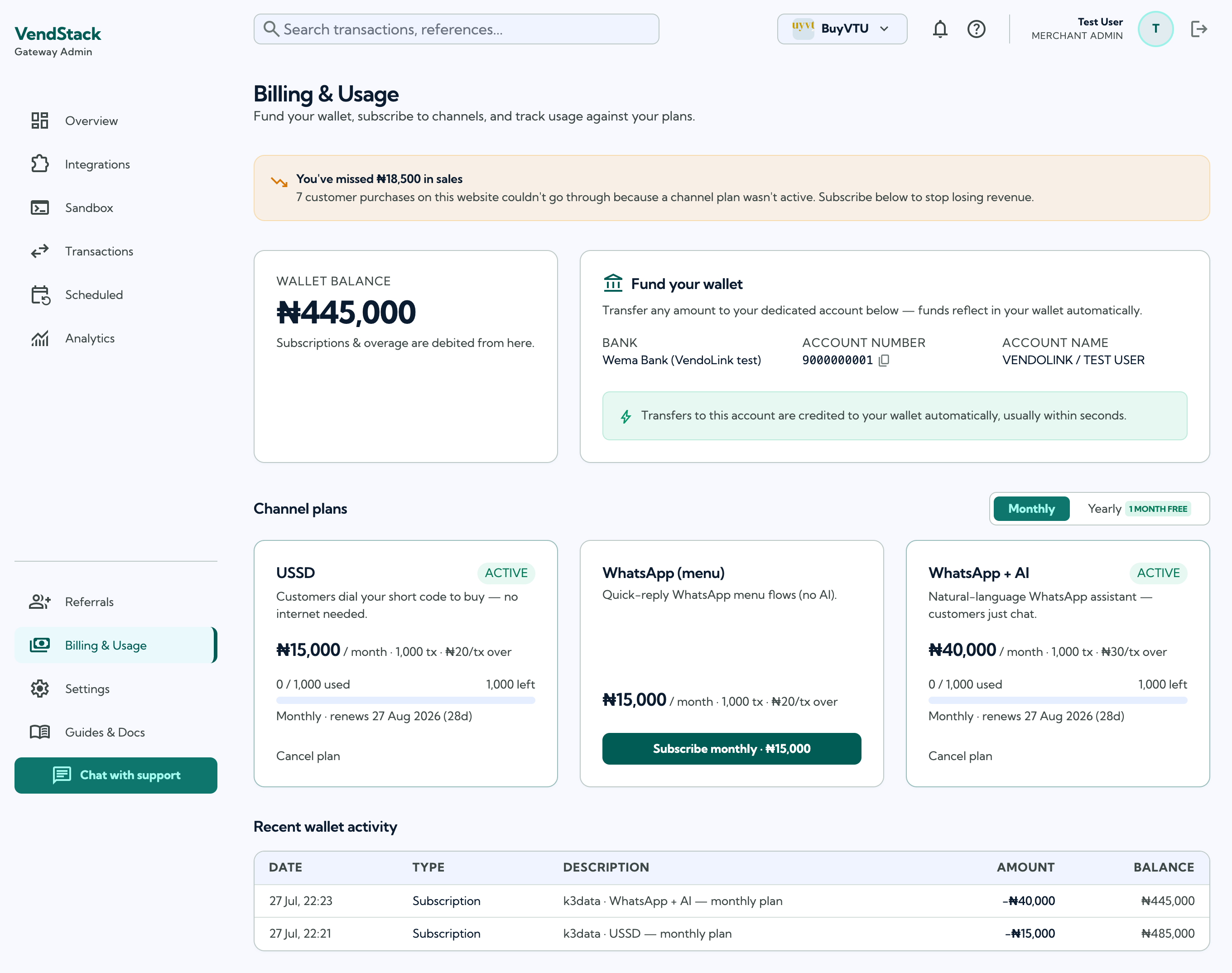
- Each plan includes a set number of transactions per month — 1,000 on the chat channels, 800 on USSD and SMS. Billing is per channel, not per product.
- There is no overage. When a channel's transactions are used up it stops serving and the Billing page shows a Subscribe again button, which charges the fee once more and opens a fresh period with a fresh allotment.
- Running the AI assistant on both WhatsApp and Telegram? Each drops from ₦30,000 to ₦25,000/month — ₦50,000 for the pair. Add the second channel and we credit the difference on the first back to your wallet the same day.
- Toggle Monthly / Yearly — yearly bills 11 months (one month free) for 12 months of service.
- If a purchase ever fails because no plan was active, you'll see a "missed sales" banner here prompting you to subscribe.
Step 6 — Test in the Sandbox
Before telling customers, open the Sandbox and drive the real USSD and WhatsApp flows against a test endpoint. Nothing here is billed or saved.
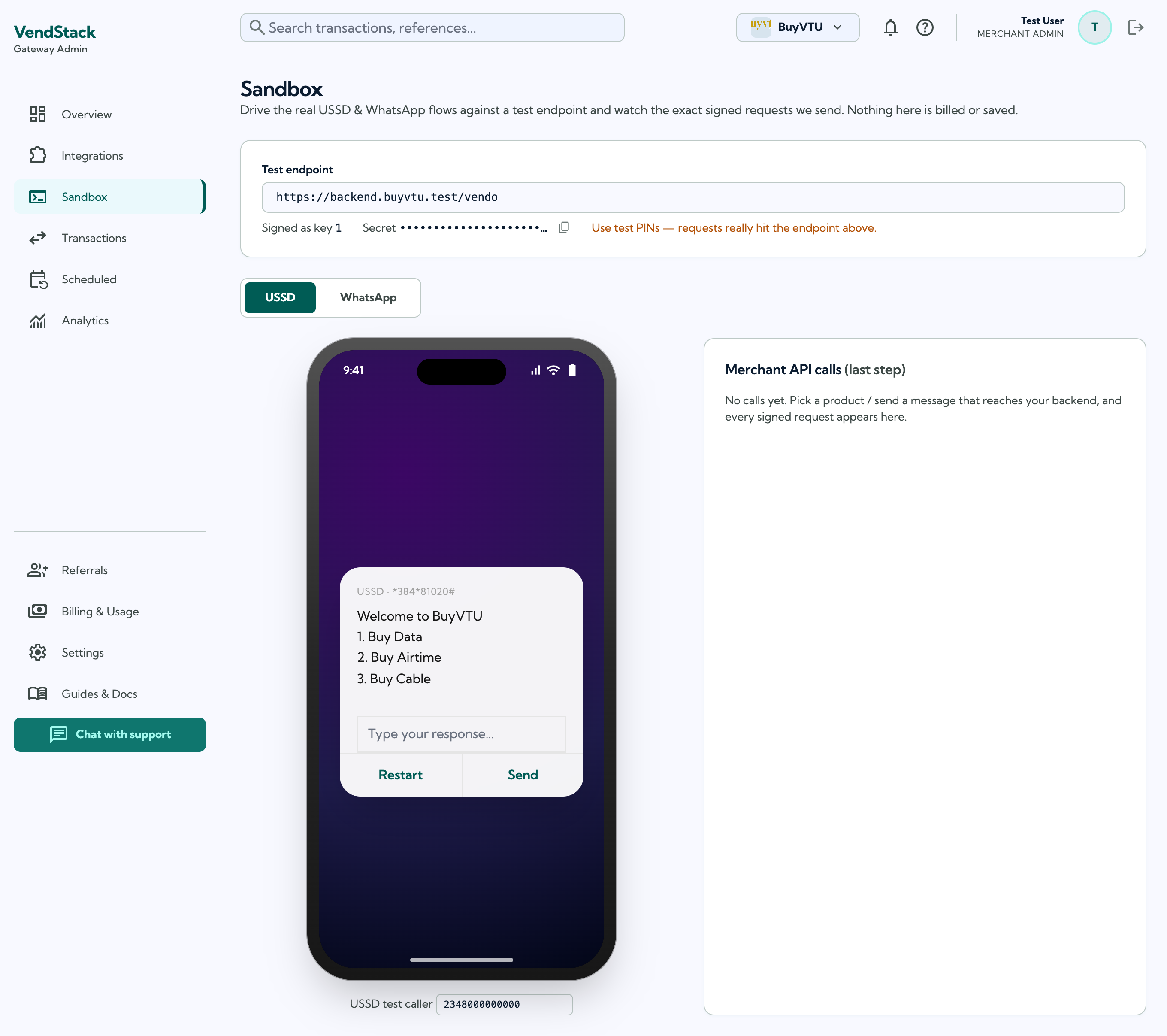
- Switch between the USSD and WhatsApp simulators with the toggle.
- Every signed request VendStack sends to your backend appears in Merchant API calls on the right — use it to confirm your endpoints return what we expect.
- Run a full purchase end to end (pick a product → confirm → enter a test PIN) and check your backend received the
/vendcall.
Go live
Once the sandbox purchase works against your real backend:
- USSD — share your dial code with customers. It's already live.
- WhatsApp — customers can message your connected number right away.
That's it. For the full endpoint contract and going-live checklist, see the Merchant API reference.
Scheduled & recurring orders
This is off by default. Turn it on with the "Let customers schedule & repeat purchases" checkbox on each channel's setup (USSD and WhatsApp) — so you decide per channel whether to offer it.
Once enabled, your customers can set a purchase to run later or to repeat automatically:
- WhatsApp AI: they just say it — "send ₦500 airtime every week", "buy 2GB tomorrow 8am", or after any purchase, "repeat weekly". Replying STOP cancels.
- USSD & WhatsApp menu: at the PIN step they reply 0 to schedule, then pick Once / Daily / Weekly / Monthly.
How it stays safe: a recurring order runs its first cycle immediately with the customer's PIN (which both fulfils it and authorises it); later cycles run automatically. VendStack never stores the PIN — scheduled runs reach your /vend as a signed, PIN-less authorization: "scheduled" call, so your backend must accept those (see the Merchant API reference). Each run is one billable transaction, like any other purchase.
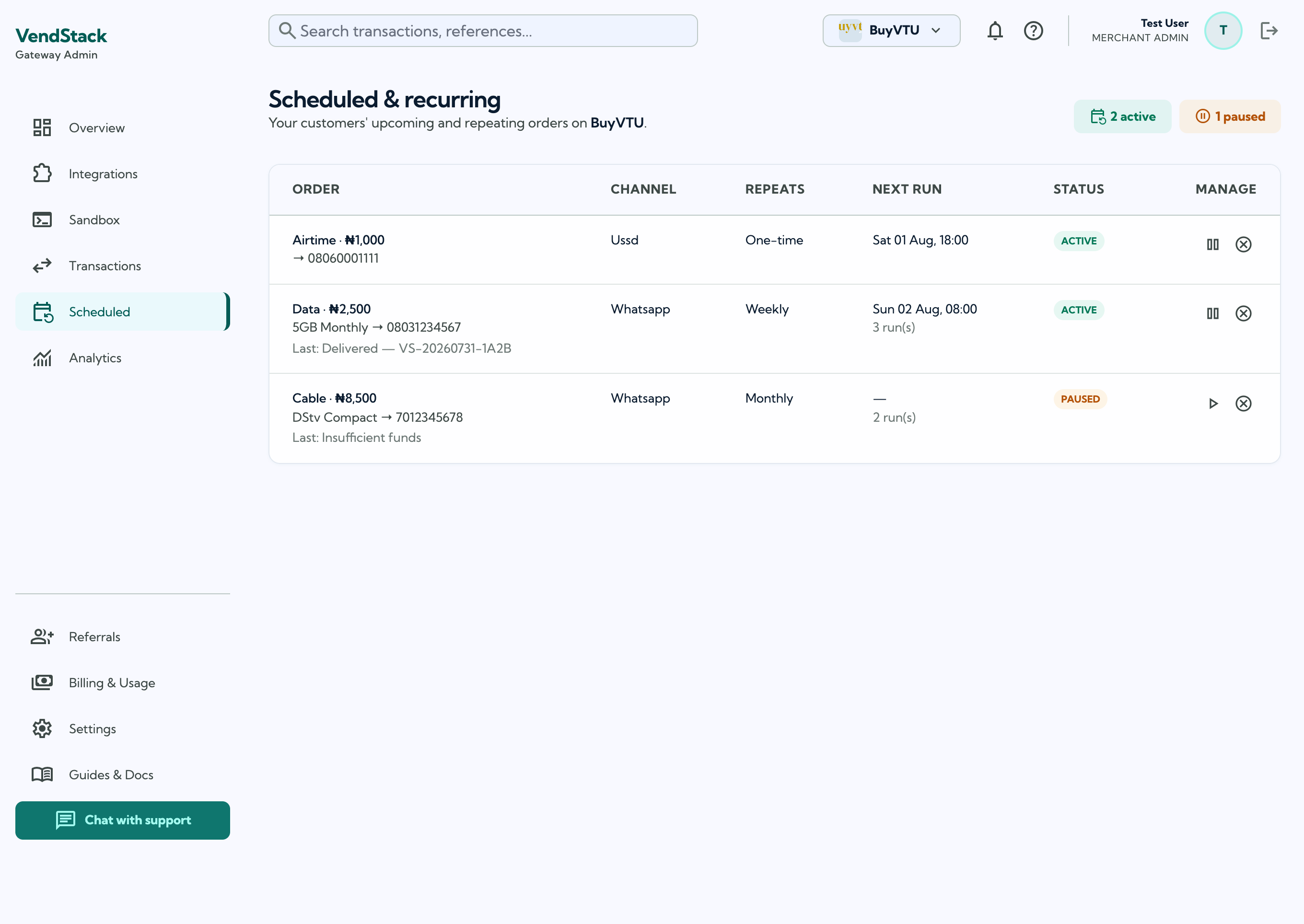
You stay in control. The Scheduled page lists every upcoming and recurring order on your website — with next run, status, and one-click pause / resume / cancel. Orders that fail several times in a row auto-pause so nothing drains a wallet unattended.
Let customers fund their wallet
Every channel shows a Fund Wallet option right after your products. When a customer picks it (or asks the WhatsApp AI to "fund my wallet"), VendStack calls your backend for that customer's bank account and shows it to them so they can transfer money — VendStack never touches the funds; you credit their wallet when the transfer lands.
To enable it, implement the optional POST /accounts endpoint on your Merchant API — it takes customer_msisdn and returns one or more { bank, account_number, account_name }. See the Merchant API reference. If you don't implement it, the Fund Wallet option simply tells the customer that funding isn't available yet.
More ways customers can buy
These work out of the box — nothing to configure:
- Saved recipients. A customer can save numbers by name — "save 08031234567 as Mum" — then just say "buy 1GB for Mum" (or pick them from the USSD/menu list). Reply beneficiaries to list, delete Mum to remove.
- Their history & receipts. "my transactions" shows recent purchases; "receipt VS-…" re-sends one. USSD/menu has a My Transactions menu item.
- Voice notes. On the AI plan, a customer can send a voice note instead of typing — it's transcribed and handled like text.
- Any wording, including Pidgin. The AI understands informal Nigerian phrasing — "abeg send me 500 airtime", "buy 1gig give my mama" — no need for "proper" English.
- Tap to confirm. On WhatsApp AI, purchases confirm with tappable Confirm / Cancel buttons.
- Electricity receipt (PDF). After a successful power purchase on WhatsApp, the customer gets a branded PDF receipt as a document — with the recharge token, units, meter number, customer name, amount and your logo. Return
addressfrom/validateandunitsfrom/vendto show them too (see the Merchant API reference).
Tools to run your business
- Customers. A directory of everyone who's bought from you, ranked by volume, with CSV export of customers and transactions for reconciliation.
- Fraud controls. Optional per-customer daily caps and a block-list of numbers (always enforced before any purchase).
- Backend health. Your Merchant API page shows your backend's success rate, recent errors, and a "you're losing sales" alert if it's failing — so an outage never goes unnoticed.
- Webhooks. Point us at a Webhook URL and we POST a signed
transaction.completed/transaction.failedevent after each purchase — see the Merchant API reference.
Stuck on any step? Use Chat with support in the dashboard sidebar — it opens a WhatsApp chat with our team.